Every app in this family is what's called a Progressive Web App (PWA): a regular website that can also be "installed" straight from the browser, with no app store, no download, and no account required. Once installed, it gets a real icon on your home screen, opens full-screen with no browser address bar, and keeps working even with no signal, since the app itself is cached on the device the first time you open it.
This is the same two-minute setup for every app here — the screenshots below happen to be IntentFlow, but the steps are identical for ShopTools or anything else in this family. There are two separate walkthroughs below: iPhone (Safari) and Android (Chrome). The browser matters — on iPhone specifically, this only works from Safari, not Chrome or any other browser, since only Safari exposes the "Add to Home Screen" option iOS needs.
01 iPhone (Safari)
- Open the app's link in Safari.
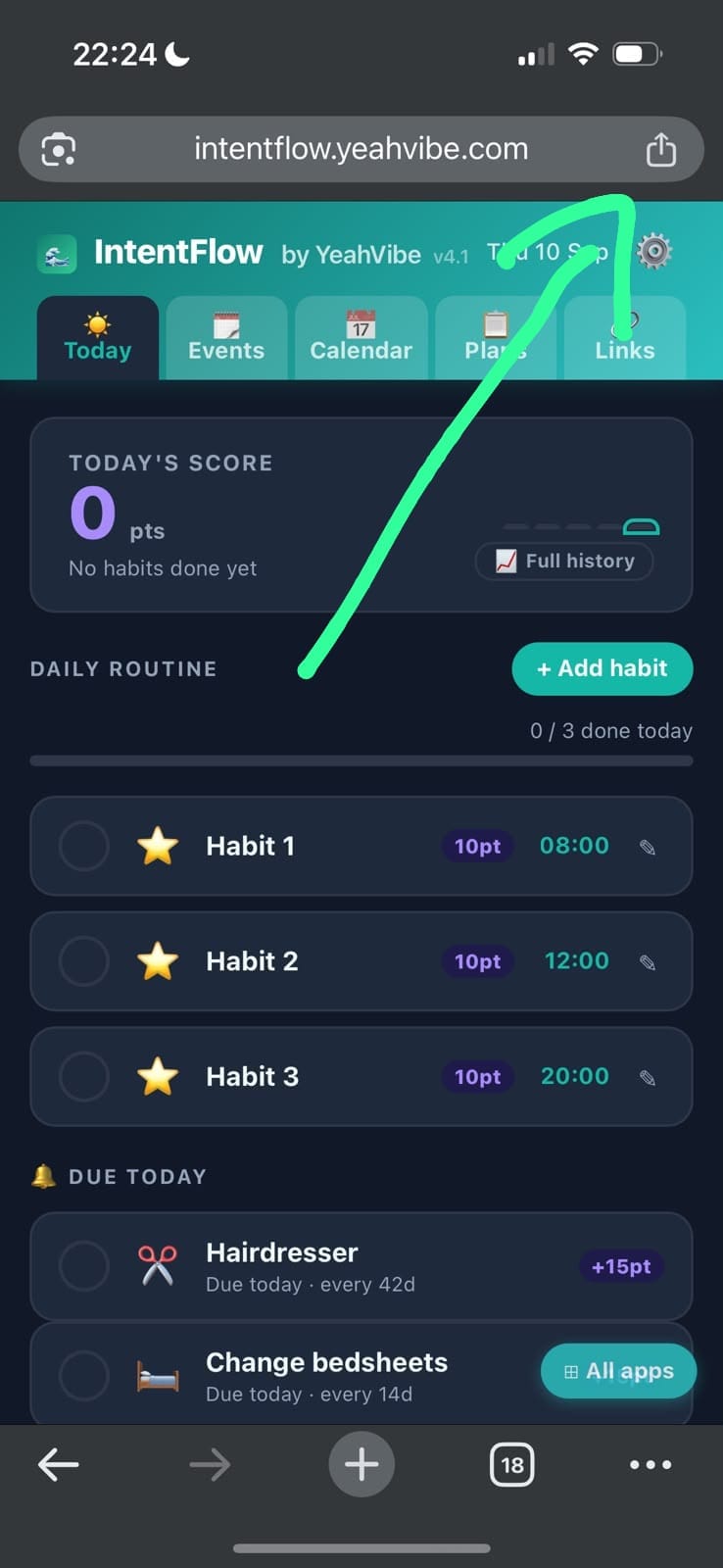
- Tap the Share button (the square with an arrow pointing up) in Safari's toolbar.
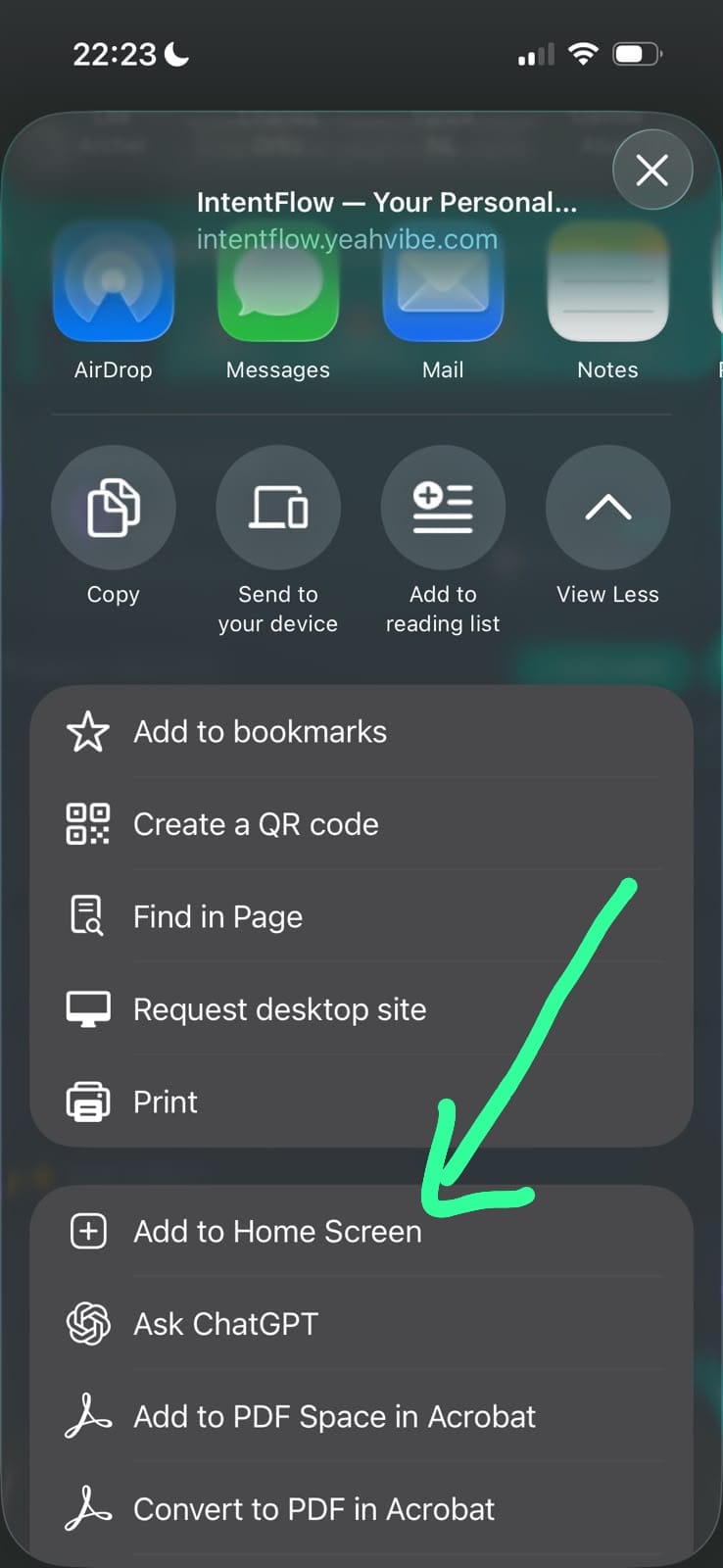
- Scroll down the share sheet and tap Add to Home Screen.
- Tap Add in the top-right corner to confirm.
That's it — the app's own icon now sits on your home screen like any other app, and opening it from there launches it full-screen, with no Safari address bar.
02 Android (Chrome)
- Open the app's link in Chrome.
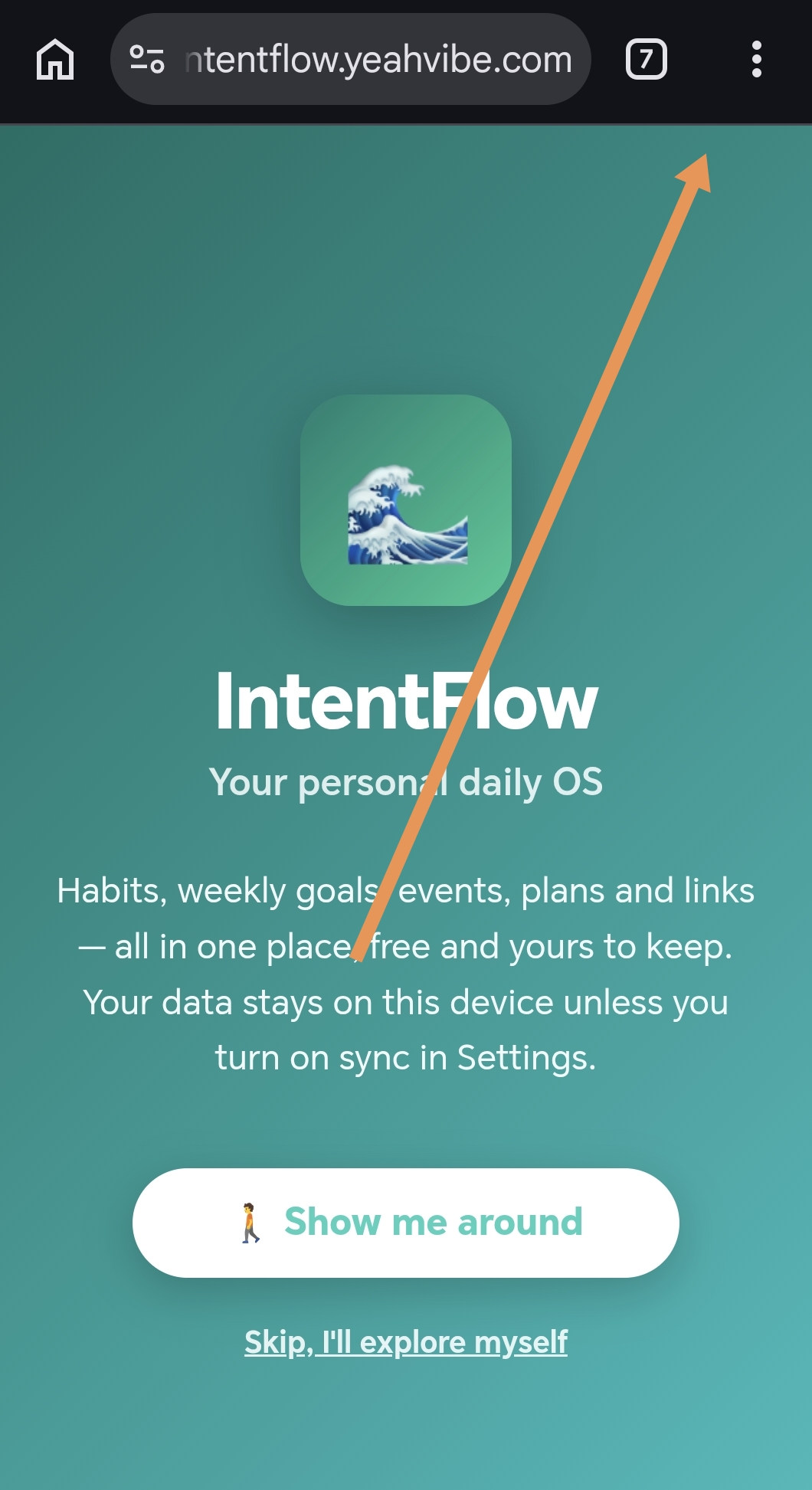
- Tap the three-dot menu in the top-right corner.
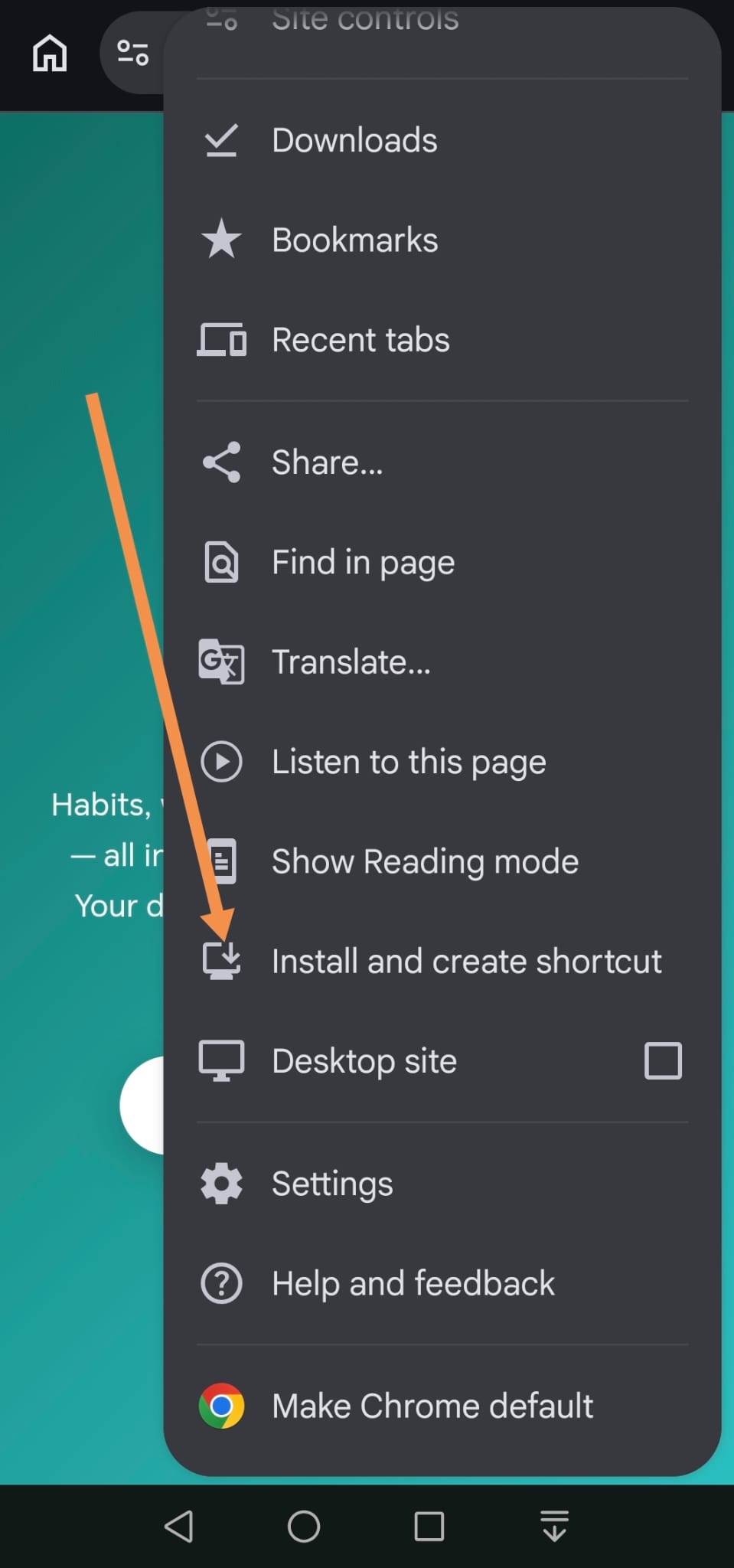
- Tap Install and create shortcut (on some Chrome versions this reads "Add to Home screen" instead — same thing).
- Confirm the install prompt.
Chrome will place the icon on your home screen (and usually in your app drawer too), and from then on it opens the same way any installed Android app does.
03 Once It's Installed
Open it from the home screen icon rather than typing the address into a browser again — that's what gives you the full-screen, no-address-bar experience and lets it work offline. The very first open still needs an internet connection (so the app itself can be downloaded and cached), but every open after that works with no signal at all, since the app, its icons, and its logic are all stored on the device.
None of these apps auto-update in the background the instant a new version ships. The app checks for a new version each time you open it, so if something looks out of date, closing and reopening it (or using the in-app "Refresh app" option, where available) is usually all that's needed.